
Key Points: Adding New Ironmongery Parts
1. Add to the part list
a. View a complete list of ironmongery parts in the system - From the main page, click part list (under Pricing & Config), then ironmongery
b. Add a new part - Find a similar existing part and click the copy button or click add part in the top right.
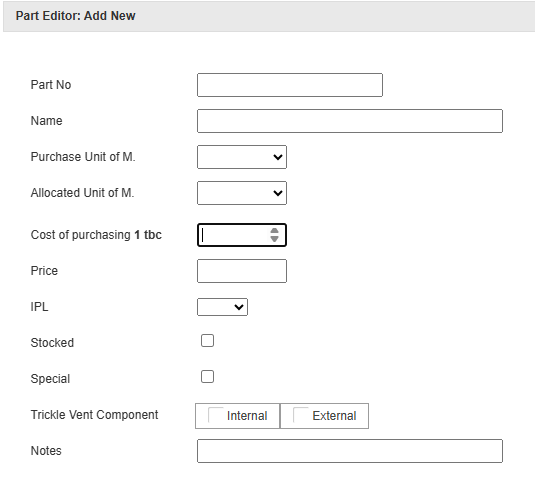
c. Create a new part - Fill in the details and click create new part:
Part No - Must be unique for every part. Once the part is created, it cannot be edited
Name - The internal name for the part. Only shown on internal outputs, not on customer quotations
Purchase / Allocated unit of measure - If in doubt, select each
Cost / Price - Only relevant if the pricing structure uses these fields in its calculations
IPL- Determines which section of the ironmongery pick list output the part will appear under, for example, sash, casement, or door
2. Add to the ironmongery lookup
a. Determine how parts are displayed in the DrawingBoard and on quotations - From the main page, click lookup editor (under production), then ironmongery lookup.


Note: Similar parts with different finishes can be grouped together under a simplified, customer-friendly part name on a single row, for example, 'sash lift' for sash lifts in polished brass, polished chrome, satin chrome, and antique brass. Parts not in the ironmongery lookup can still be added to drawings via the part allocator, but these will not appear on quotes, only on internal outputs.
b. Add a new row - To add a new row to the editor, type the part name into the field at the top and click add.
c. Add a new part - Click the pencil icon in the desired cell, search for the part number from the part list, click save.
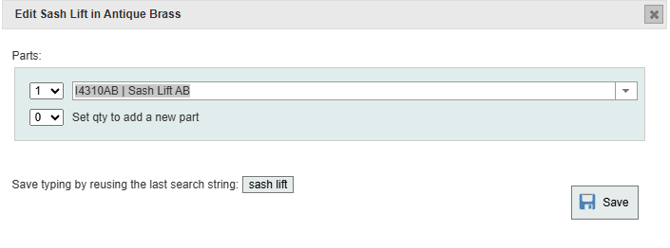 Note: Multiple parts can be added to a single lookup entry, useful when it is preferred for several components to appear under a single name on customer quotes, for example, a multipoint locking system.
d. Add an ironmongery finish - Navigate to DrawingBoard config, then reference table, then ironmongery finish.
3. Update the price file
a. Add new parts to an existing price file - From the main page, navigate to price file editor, click update with new parts. 
Note: The new part will not be available in sales drawings until it is added to a price file. If the new part still doesn't appear in the DrawingBoard, ensure the drawing is on the latest published price file.
b. Price file 1 - If still on price file 1, the update with new parts button will not be visible. Unpublish and republish price file 1 to add new parts.
c. Modifying existing parts - The update with new parts button only works for adding newly created parts. If existing parts have been modified, you will need to publish a new price file instead. For more information, see price files - creating, publishing, and updating.