Key Points: Adding Multiple Sashes/Door Leaves to a Frame
1. Multiple sashes in a single frame
The quickest way to draw an item with multiple sashes in a single frame is to use a template. If there's not a suitable template, the design will need to be created.
2. Example - Drawing a pair of French doors with sidelights
When there is no suitable template for a pair of French doors with a sidelight on either side:
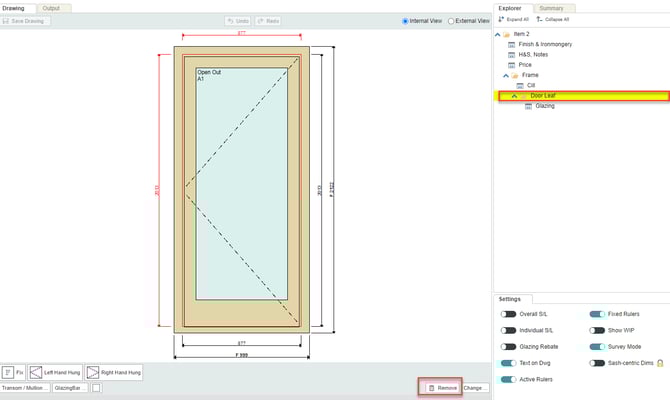
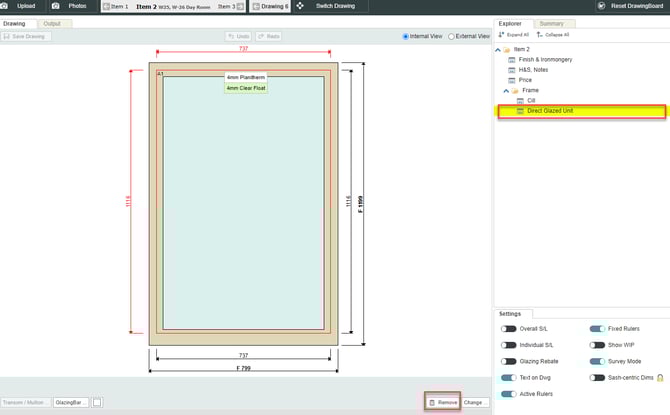
a. Start with a basic door design - Click the door leaf, then click the remove button, below the drawing. A casement or sash window design can also be used, as only the frame will be used.
b. Select the empty frame - Change the dimensions as required. 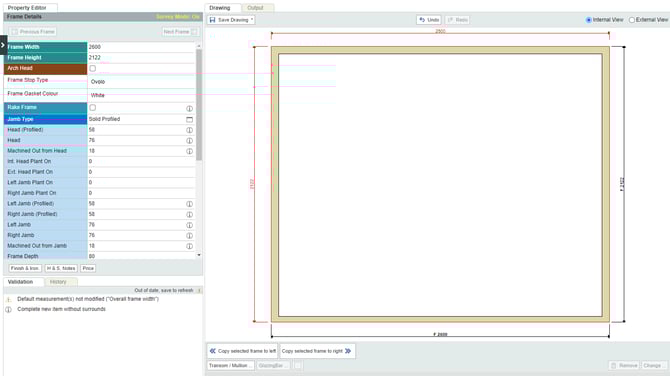
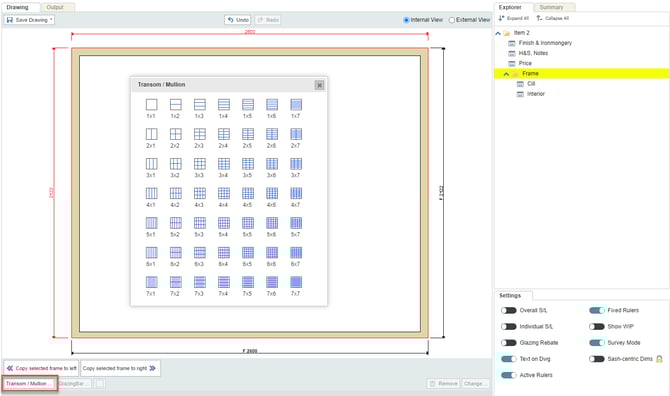
c. Select the appropriate design - Click transom/mullion, for French doors with two sidelights use a 3x1 design to give two mullions to separate the French doors from the sidelights.
d. Select French doors - Click on the empty section in the middle where the French doors will go. Click the change button, then select French door.
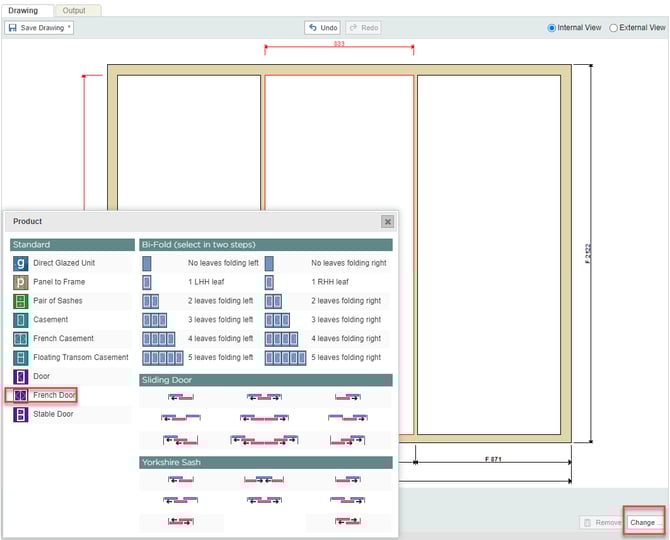
e. Select sidelights - Click on an empty section where a sidelight will go. Click the change button, then select direct glazed unit or door. Repeat for the other sidelight.
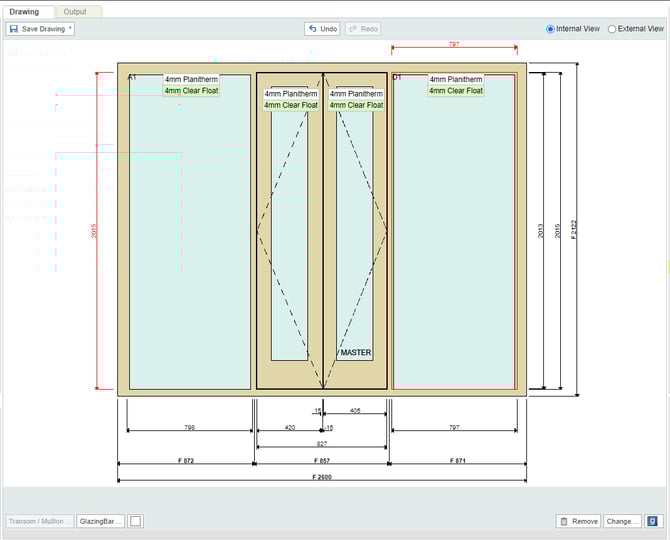
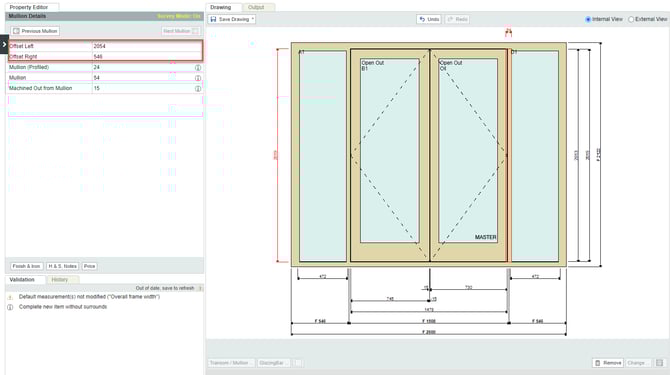
f. Select the mullions - Click each of the mullions, change offset left and offset right to suitable figures.
3. Example - Drawing a quadruple casement with fanlight
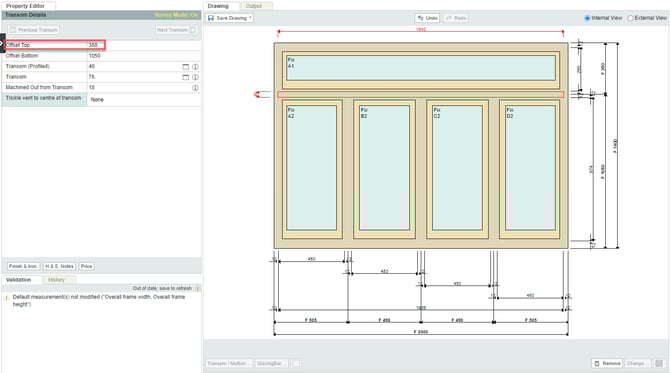
When there is no suitable template for a quadruple casement with a single long fanlight above:
a. Start with any basic design - For example, select direct glazed unit or casement sash, then click the remove button.
b. Adjust the frame size - Adjust the size of the empty frame as required.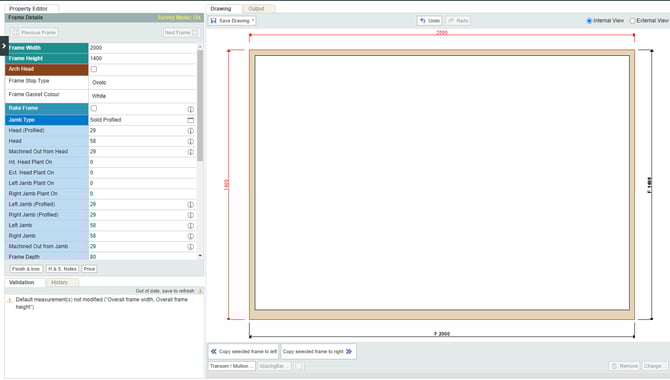
c. Select the appropriate design - Click transom/mullion, for a quadruple casement use a 1x2 design to divide the frame into two horizontal sections.
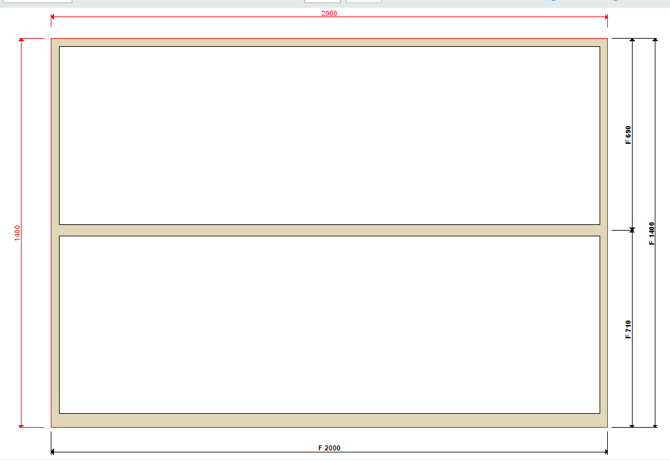
d. Sub-divide the bottom section - Click the empty space below the mullion, click transom/mullion, then select 2x1 design.
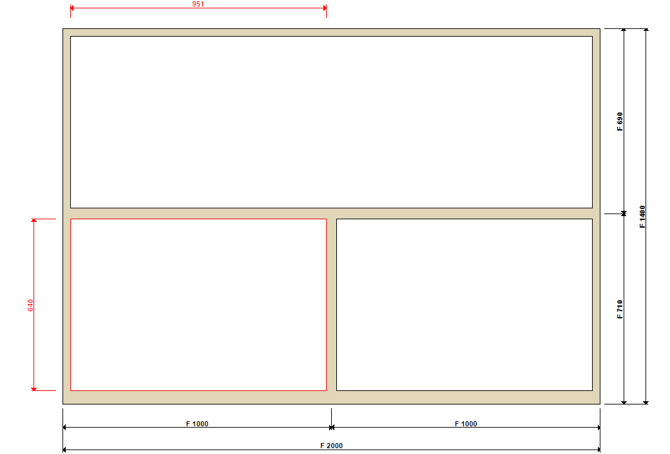
e. Sub-divide the bottom section again- Click the empty space below the mullion, click transom/mullion, then select 2x1 design, for smaller cutouts.
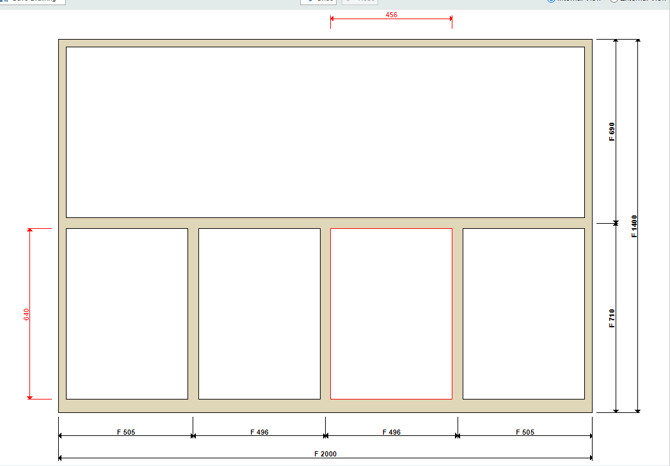
f. Select all the empty sections - Click each of the empty sections, then the change button and select casement. Speed up the process by clicking copy here after adding the first casement.
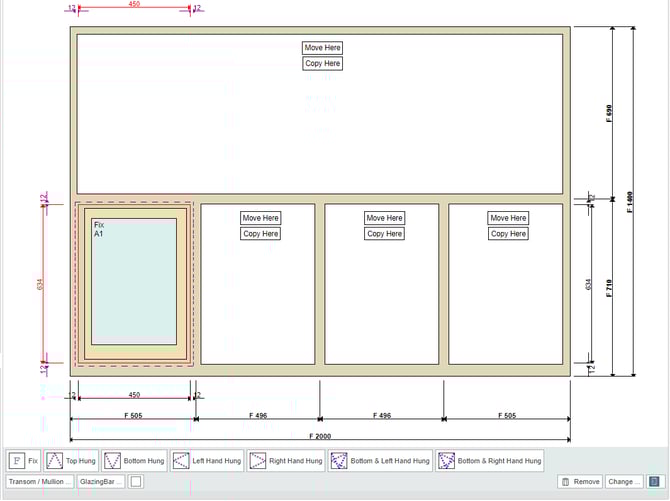
g. Adjust the offset top - Click transom, adjust the offset top.