
Key Points: Adding Timber Components to the Part List
1. Viewing timber components in the component editor
For timber components, such as, surrounds and staff beads, to appear in the component editor on the DrawingBoard, they must be configured in the part list. As a minimum it must have as minimum:
Part number and name (compulsory for all parts)
Category and group
Stocked must be set to something (it doesn't matter what)
A Material
Note: The following instructions only apply if the integrate system is switched over to the new part list based component system. If unsure, please contact the Support Team.
2. Access the part list
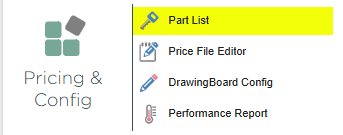
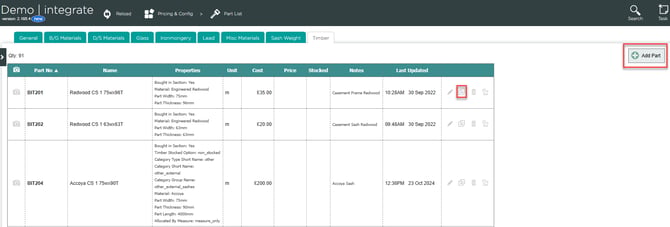
Navigate to the part list, then the timber tab.

3. Add a part
Click add part or copy an existing part.
4. Name the part
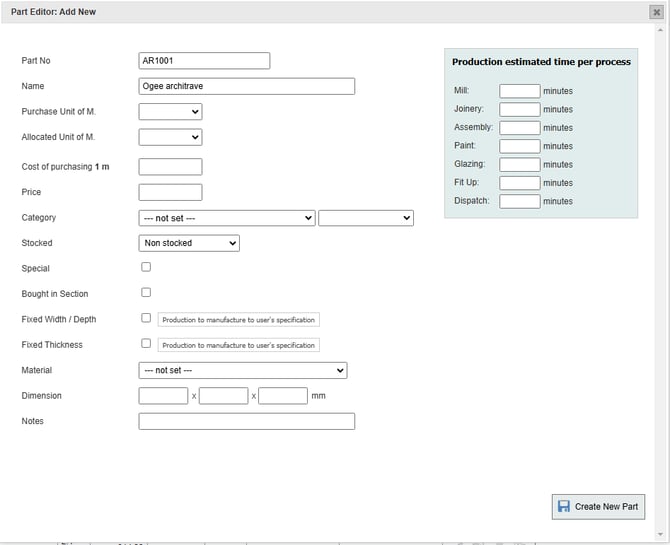
Enter a part no and name.
5. Allocate the part by length or length and quantity
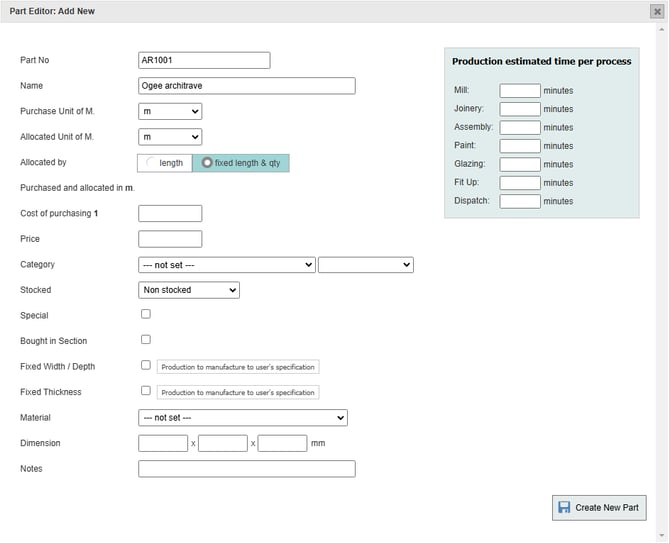
Set the purchase unit of m and allocated unit of m to metres. Allocate the part by length only, for example, 2000mm of architrave, or by fixed length & quantity, for example, 2 x 1000mm architraves.
Note: This only affects how the part is auto-allocated by part allocation rules.
6. Set the category
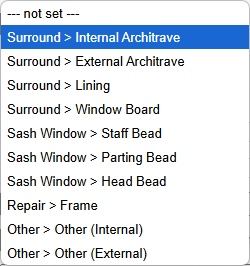
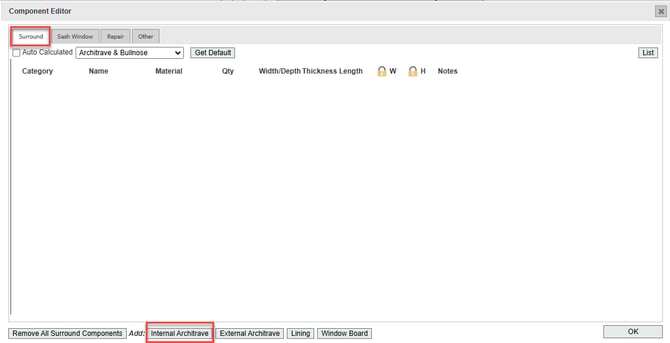
Category is a general description of the part. This is a pre-defined list of options that determines which tab the component appears under in the component editor. For example, select surround > internal architrave, then click internal architrave for the component to appear in the surround tab of the editor.
7. Set the group
Group is the drop-down list next to category. This is a more specific description of the part, decided by the user. On the quote PDF the component will be described as [Group Name] [Category Name]. For example, the configuration below would be described as 3 inch ogee internal architrave.

8. Set an option for stocked
Anything marked non-stocked will appear on additional materials outputs. Otherwise, it will appear on the installation materials outputs.

9. Set fixed width and fixed thickness (optional)
If boxes are ticked for fixed width and fixed thickness of the component, the width and thickness will be pre-filled in the DrawingBoard, and will not be editable.
10. Set the material
The material choice must be unique per category and group. For example, if a 3 inch ogee internal architrave in Tulipwood already exists, another one cannot be created in Tulipwood. One can be created in any other material. Click create new part.
Note: Once the part is added, it will be immediately available for use in survey drawings. For sales drawings, the price file will need to be updated or published, and the drawing switched to the latest price file.