Key Points: Creating Default Rules for Ironmongery and Ironmongery Ranges
1. Ironmongery added via the ironmongery menu
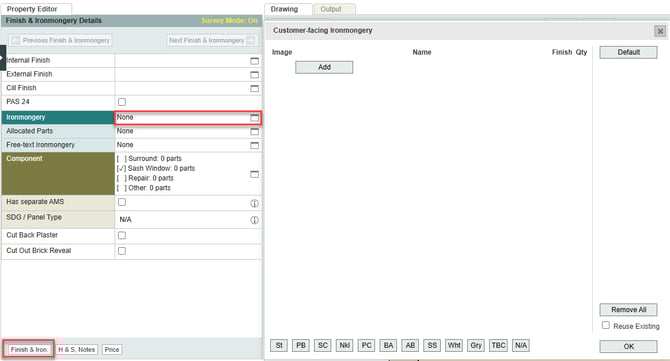
Ironmongery added to a drawing via the ironmongery menu, within the finish and ironmongery section of the DrawingBoard, is customer-facing and will be shown on customer quote documents.
2. Ironmongery added via the allocated parts menu
Ironmongery added via the allocated parts menu is not customer-facing, will not be shown on customer quotes, but will appear on production outputs, such as, the ironmongery pick list.
3. Add ironmongery manually
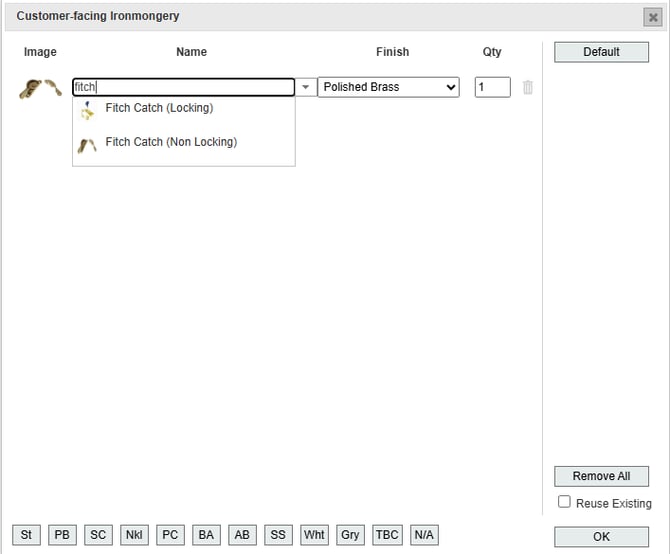
Click the add button, and search the list of parts. Update finish and quantity.
Note: The shortcut buttons on the bottom allow the finish of all parts to be quickly updated with a single click.
4. Add a default ironmongery selection to the drawing based on item type
From the main menu, go to DrawingBoard config, then default ironmongery.
5. Write rules for hardware or test quotes
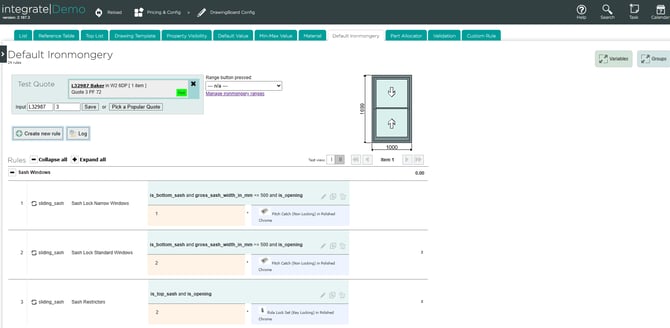
From the default ironmongery page, write rules to:
a. Assign a type of hardware if a particular condition is true
b. Add a test quote at the top of the page to test which rules would trigger for the drawing
Note: These rules are only activated in the drawing the default button is clicked in the ironmongery menu (unlike the Part Allocator rules, which are triggered automatically whenever the drawing is edited). For a more detailed guide on writing rules, see working with rule editors.
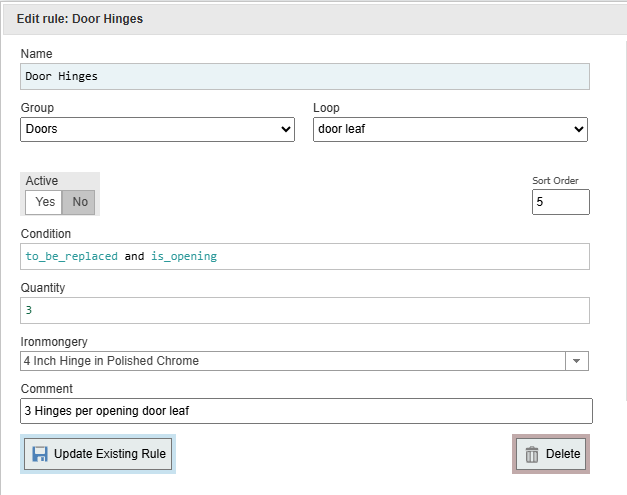
Example: This rule assigns 3 x 4 inch hinges in polished chrome for each new door leaf that isn't fixed.
6. Set up multiple ironmongery ranges
From the main page, navigate to lookup editor, then ironmongery range to set up more than one default ironmongery selection for a certain type of window or door, for example, a contemporary selection and a traditional selection.
Note: Ironmongery ranges are unrelated to product ranges which can also be configured in integrate.
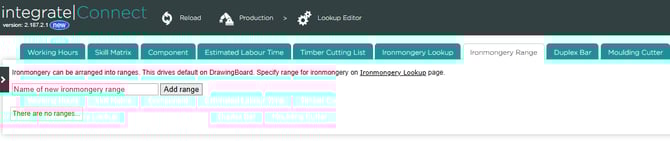
a. Add an ironmongery range - Type the name of the first range, click add range. Click the pencil icon to edit the range and decide what type of items the range applies to.
Note: The option will only appear in the ironmongery menu for the selected item types. 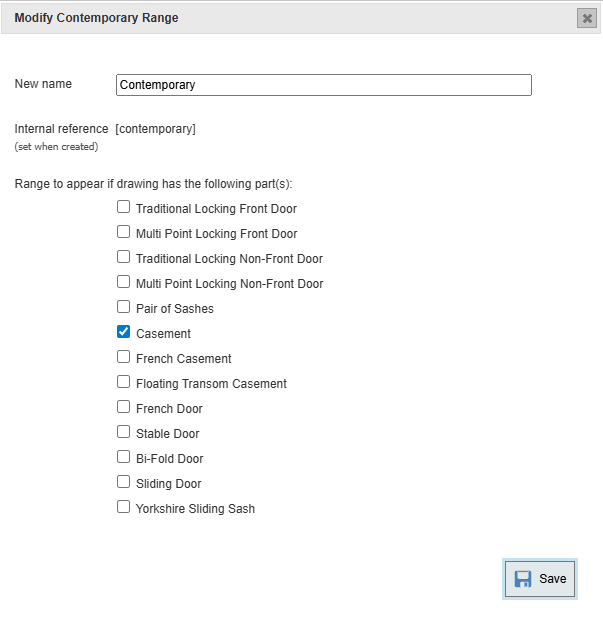
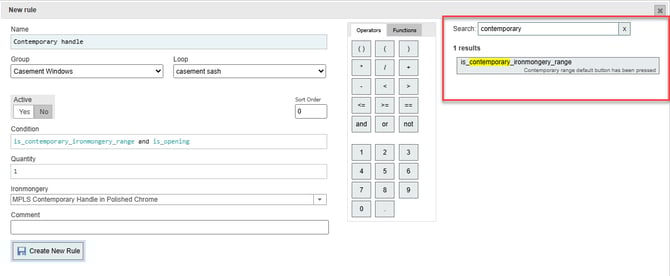
b. Set variables for each ironmongery range - After adding the ironmongery ranges, navigate back to the default ironmongery rule editor. Use the search bar on the right to find a variable for each added ironmongery range.
Note: Using these variables will specify the rule will only be triggered if the user clicks the button for that particular ironmongery range in the drawing.
Note: When an ironmongery range for a certain type of item is enabled, the standard default button will not be available in the drawings for those items, but any rules which don't specify an ironmongery range will always trigger regardless of which range default button is clicked.