Video Guide: Understanding the Factory Loading Report
Watch an overview of the factory loading report, a report view showing an estimation of how long manufacturing processes will take (in minutes) for a given time period, and find out how to use the search function.
Key Points: Understanding the Factory Loading Report
1. Locate production reports
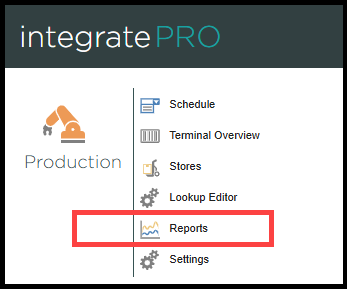
From the integrate home page, navigate to integratePRO, select reports in the production list.
2. Navigate to the factory loading page
There are two ways to locate factory loading page:
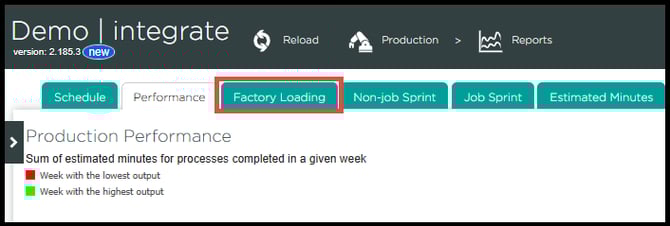
a. From the reports page, click the factory loading tab
b. Add Production/Reports/FactoryLoading in the browser to the end of your company URL, for example, https://Example.work/Production/Reports/FactoryLoading
3. Production process overview
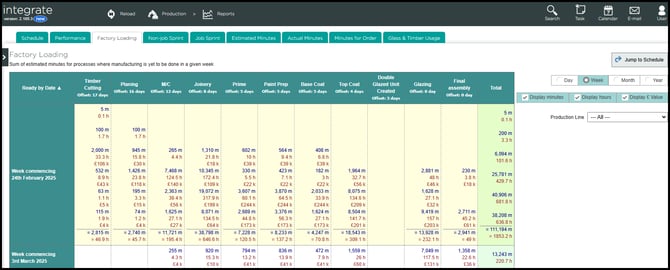
When the factory loading report is first opened it will show an overview of each process within the production line, outlining the estimated minutes of production yet to be completed.
4. Breakdown of selected processes
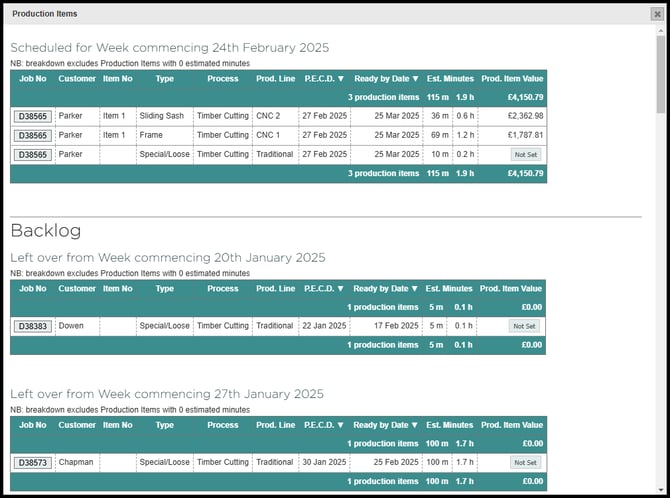
Select any of the boxes within the report to provide a detailed breakdown of the selected processes' estimated minutes and production value per individual item.
5. Jobs not completed in the previous week
Underneath the scheduled week is a backlog section. This section displays any jobs not completed in the previous week, which are automatically rolled over into the following week's schedule until they are finished.
6. Estimated labour time
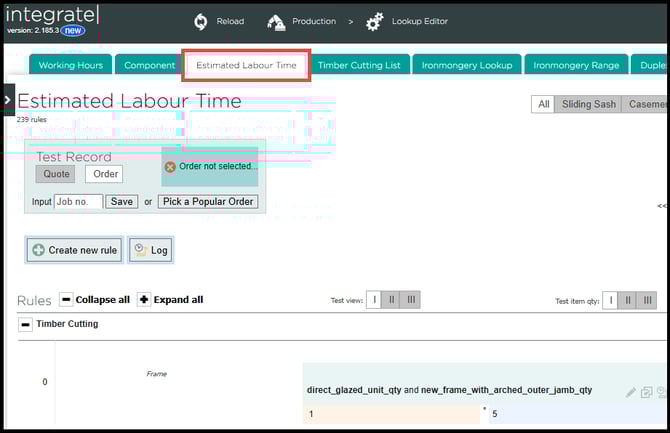
Estimated minutes are calculated for the system from the estimated labour time page. From the integrate home page, navigate to integratePRO, select lookup editor in the production list, then select the estimated time labour tab.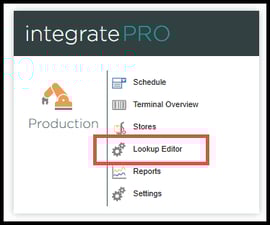
7. Manually modifying estimated minutes
Estimated minutes can be manually modified when a job is imported to the production schedule. 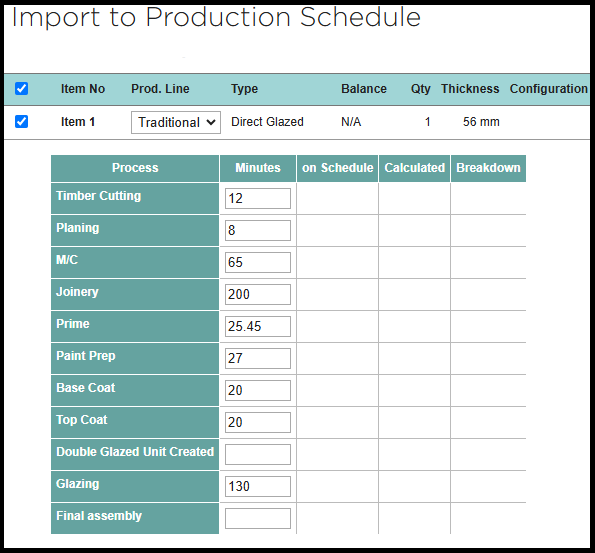
8. Customise report view
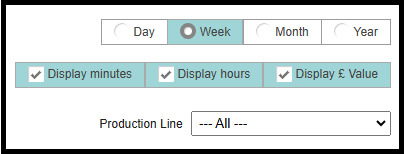
Various elements of the report can be customised to fit a specific time frame or data requirements. Select one of the three adjustable options in the top right corner to tailor the report:
Time Frame - Four checkboxes allow the viewable length of time displayed from per day to per year to be changed
Displayed columns - Ticking or unticking the one of the three tick boxes will show/hide the selected data within the report
Production line - If the organisation has multiple production lines this option will appear to allow one or all of the production lines to be isolated