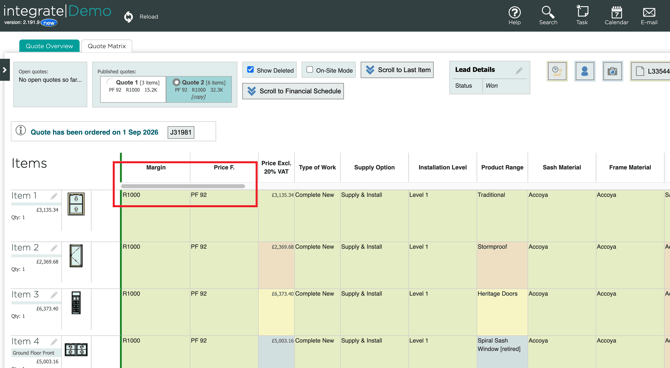
Key Points: Changing Mac Device Settings to Show Scroll Bar.
1. Using scrolling on Mac.
By default the scroll bar is turned off in the Mac Device settings. If you choose to, you can still scroll up, down, left, and right if you are using a MacBook or Magic Trackpad by using two fingers to scroll in the direction you want.
If you have an Apple Magic Mouse, them you can use one finger to scroll. If you want to change the settings so you can see the scroll bar all the time, or are using a different mouse, the following steps will show you how to turn the scroll bar on, so it is visible all the time.
2. Opening Settings.
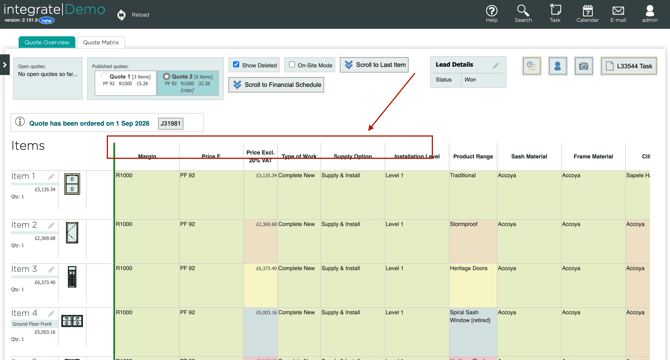
This screenshot shows where the scroll bar should be on the Matrix.
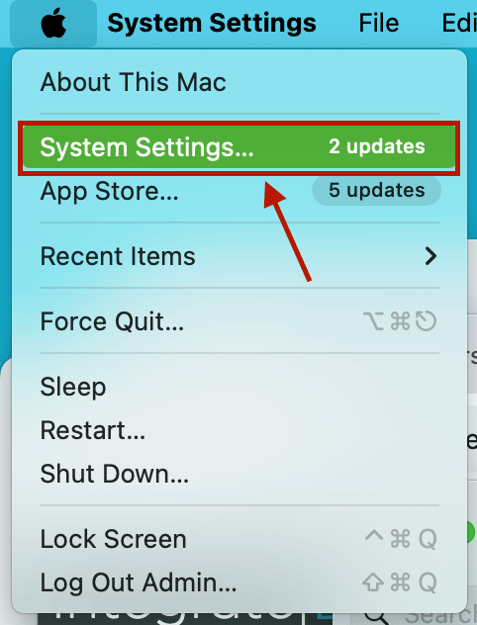
To get to settings, firstly navigate to the top left of the screen (you might need to move your mouse to the top of the screen if the menu bar isn't showing. The mouse will make it appear). In the top left of the screen click the Apple button.

Once you have clicked this button, there will be a drop down menu with a few options.
Click System Settings. (The one in the drop down menu, not the one next to the Apple Button).
3. Navigating Settings
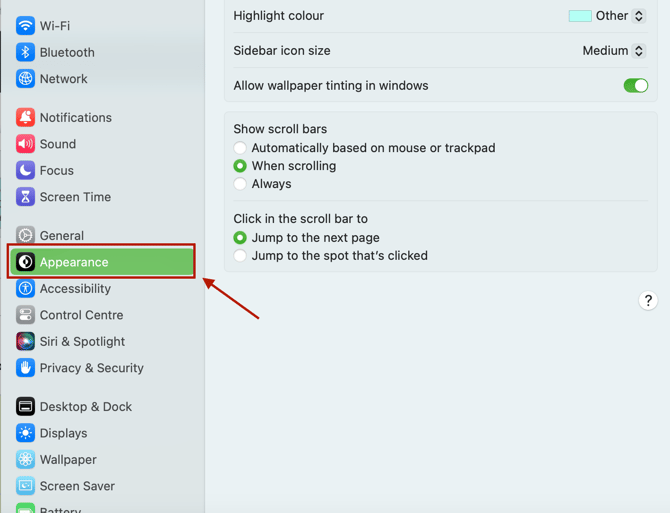
Once you have clicked the System Settings button, your settings will open. Navigate to Appearance.
4. Changing the scroll wheel.
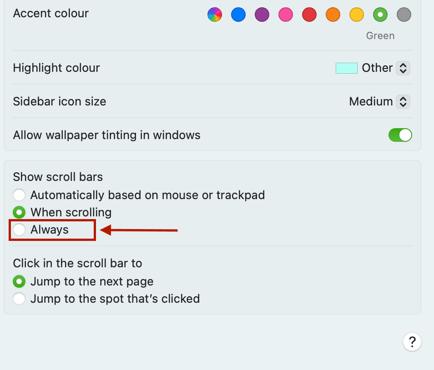
When you are on the Appearance page, you can now change your scroll settings. There are three options.
Click Always.
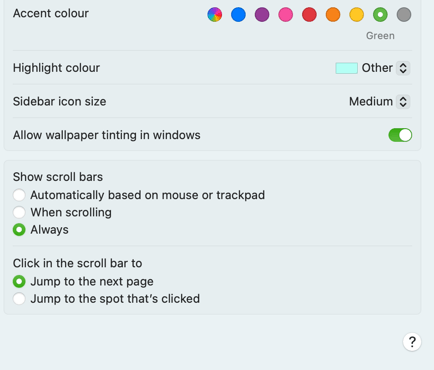
Once Always is clicked, your scroll bar will show on your webpages.