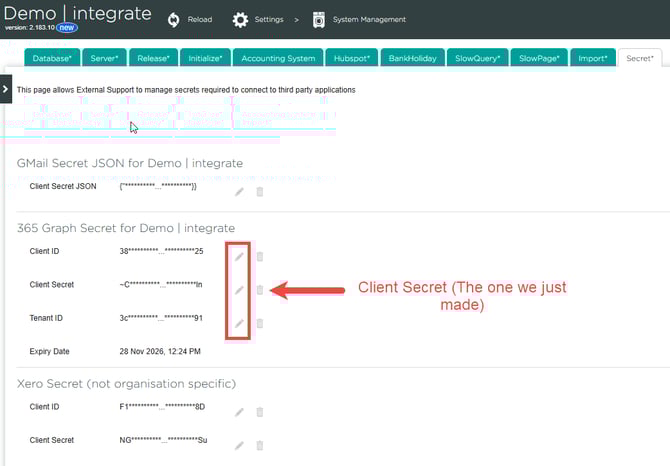
Note: This guide is intended for the EndtoEnd Support Team or external Managed Service Providers (MSPs), but the steps can be followed by anyone with access to the Microsoft Entra portal.
Video Guide: Microsoft 365 Secret Renewal
This video shows how to access Entra portal and update credentials.
Key Points: Microsoft 365 Secret Renewal
1. Access Entra portal
Click HERE to go to Microsft Entra.
2. Access app registrations
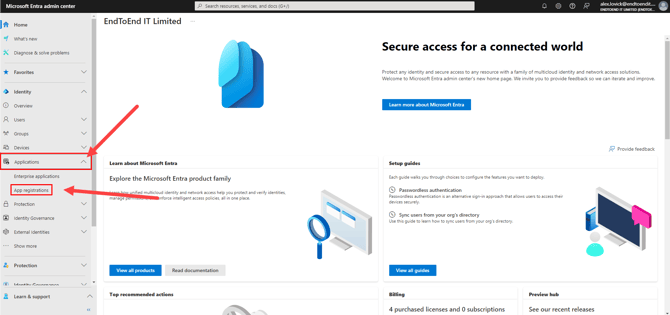
On the Entra main dashboard, in the navigation bar click applications, then select app registrations.
3. Access applications
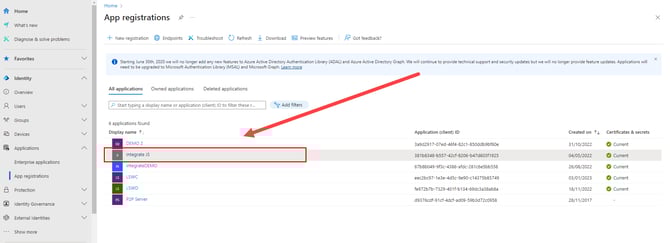
Within the app registrations page, select the all applications tab, find the integrate application, click to open the application view.
4. Locate certificates and secrets
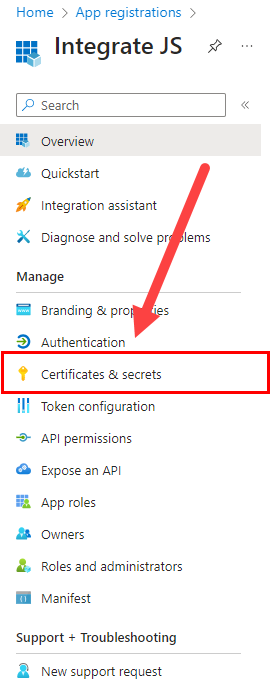
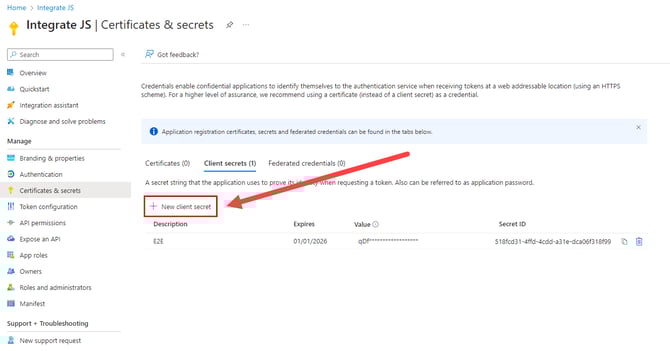
In the left-hand navigation panel, click certificates & secrets.
5. Renew the secret
Click + new client secret to renew the graph secret.
6. Complete the new secret
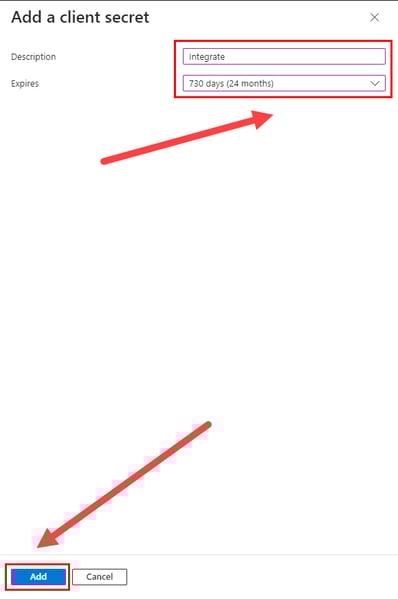
Set description to integrate and expiry to 730 days (24 Months), then click the add button to complete the new secret.
7. Copy the secret value
Copy the value of the secret - not the Secret ID, the correct one will always contain a ~ symbol.
Note: MSPs and customers please email this value to support@endtoendit.com, who will be able to perform steps 8 and 9.
8. Access settings
In the integrate app, navigate to settings > system management > secret.
Note: Only external support users can access this page.
9. Update the secret
Select the small grey pencil icon next to the client secret line to update the secret, paste in the value from the client.