
Key Points: Creating a Frame Only Drawing
1. Create a new drawing
Depending on item type, click on pair of sashes, casement sash or direct glazed unit. 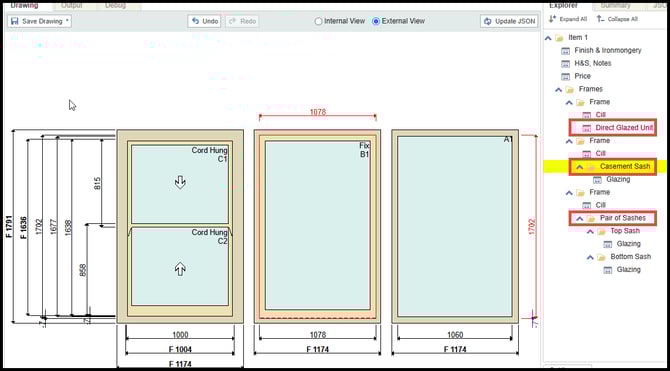
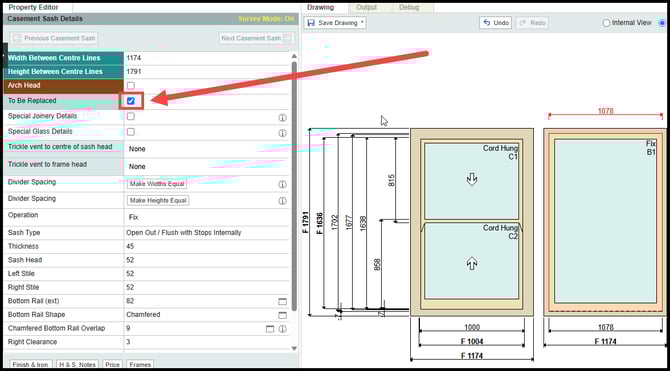
2. Remove the sash from the frame
Under the property editor, on the left-hand side, untick to be replaced tick box, to remove the sash from the frame leaving the frame only.
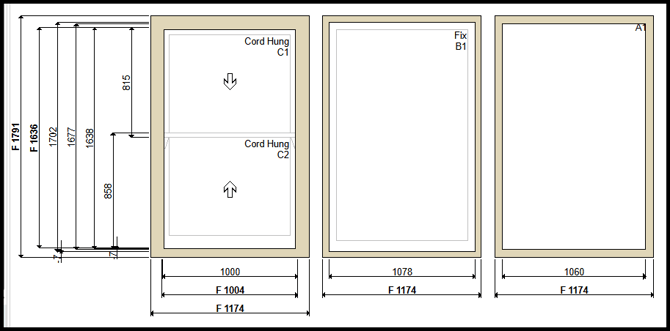
3. Removing the frame from a pair of sliding sashes
Untick the to be replaced option on both the top and bottom sash.
4. Unable to see the to be replaced tick box
If the to be replaced tick box is not visible within the DrawingBoard, enable this option within property visibility:
Navigate to pricing and config, then DrawingBoard config
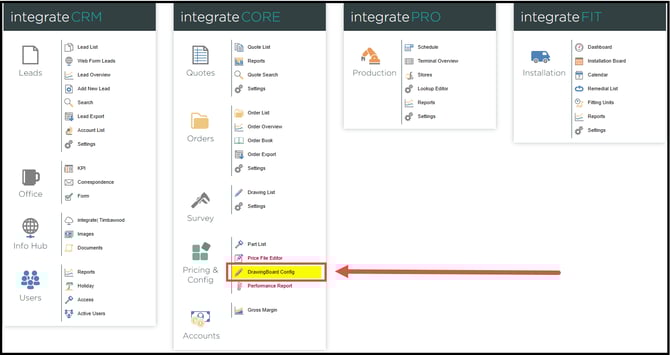
Navigate to the property visibility tab. Under the part filter search for sash. Under the property filter search to be replaced.
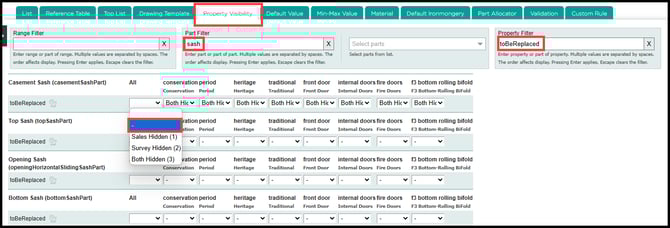
Locate the item type part:
Casement - casementSashPart
Top sash - topSashPart
Bottom sash - bottomSashPart
Direct glazed - glassPart
Change the dropdown from hidden to - (Blank). Return to the drawing, and refresh the page. The to be replaced tick box should now be present.