
Video Guide: How to view the Delivery Date on the Order List.
1. Enabling the setting to view the delivery date.
To be able to view the Delivery Date on the Order List, you must first enable the following settings.
Organisation Settings.
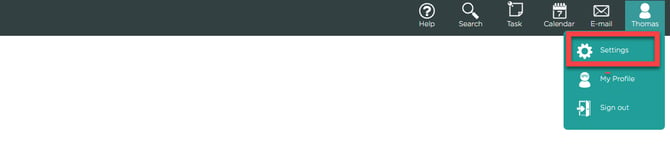
Navigate to settings by clicking your profile and then settings.
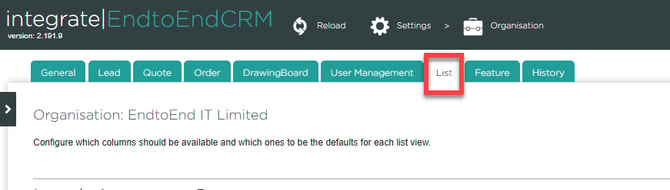
From settings go to Organisation.

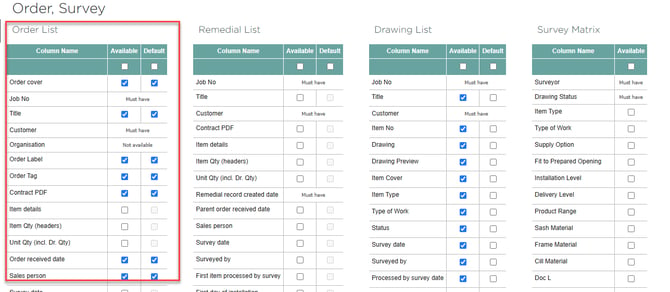
In Organisation, go to List and then scroll down to Order List.
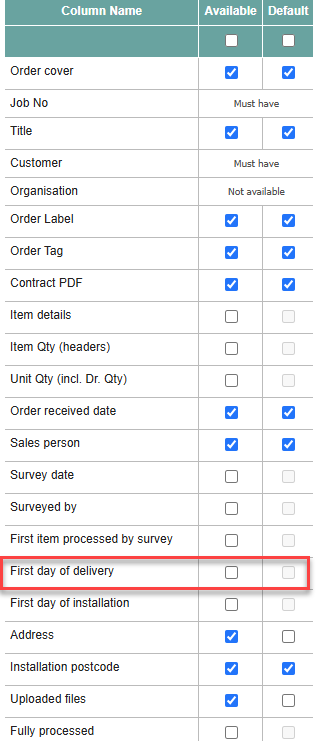
Click 'First day of delivery' and save.
Column settings
When you are on the Quote List, there is a Columns button, click this and it will open up a menu where you can select 'First Day of Delivery.'
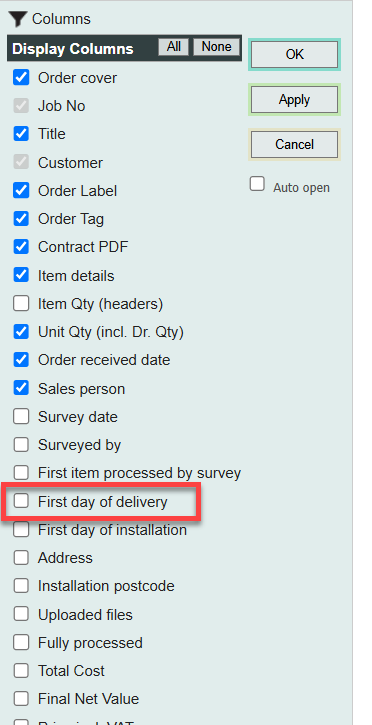
Press 'OK.'
Once these settings are applied, you will now be able to view the delivery date on the Order List.

CSV File
There is also an option on this page to export the list to a CSV file.
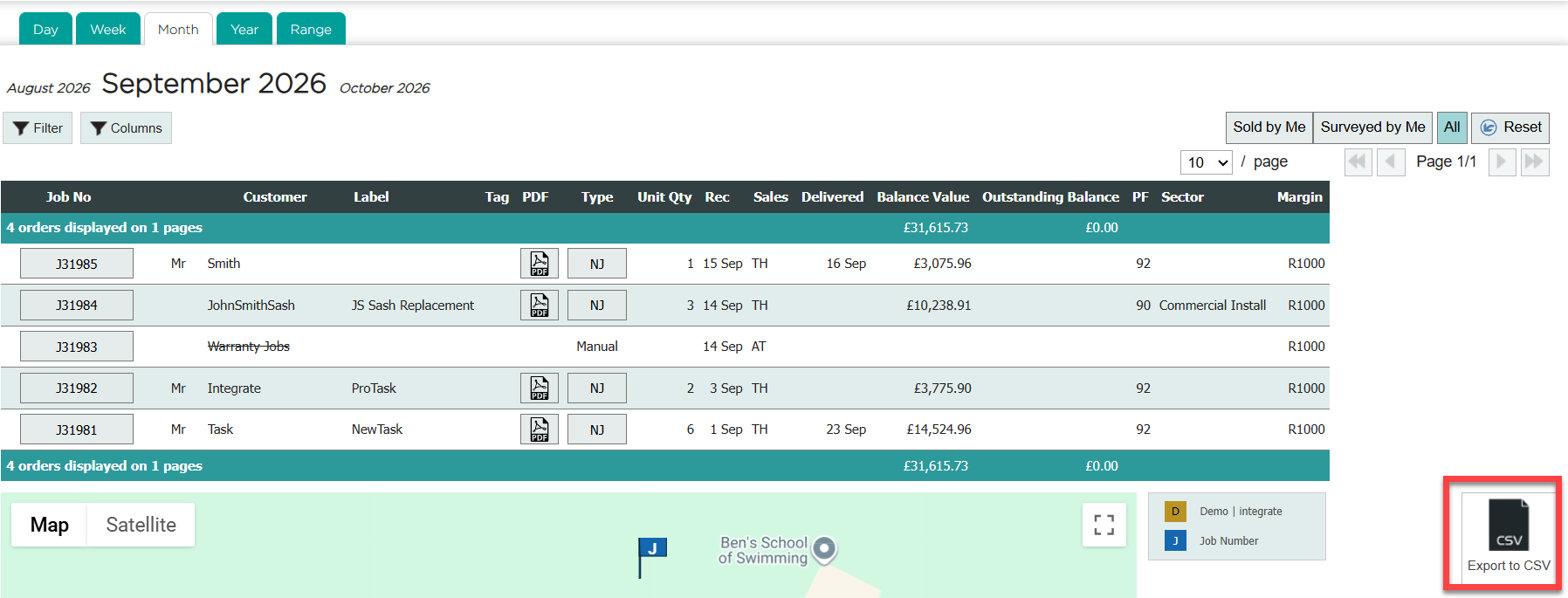
It will look something like this when opened in Excel.
