Key Points: Generating KPI Reports
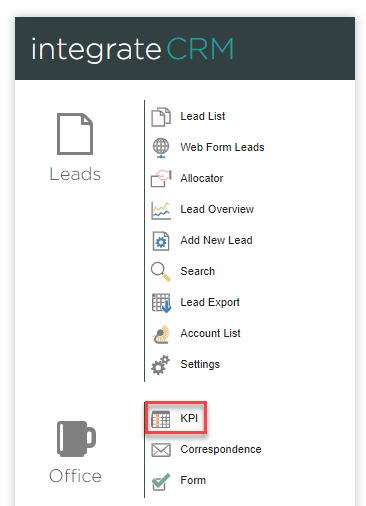
1. Go to the KPI page
From integrateCRM home page, click on KPI.
2. Find KPI settings
Click KPI settings button in top-right corner.
3. Select report timeframe
Select the reporting period - day, week, month, or year.

4. Select organisation
If sub-domains are set-up, choose the relevant organisation for the report.

5. Select criteria
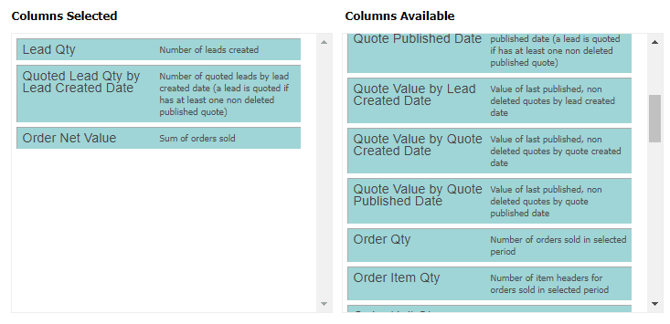
Drag and drop desired criteria from columns available to columns selected.
6. Save the report
To return to the report later, click save for later. Set to public, to allow other users to access.

7. Generate the report
Click save and reload to generate the KPI report.