
Payment Receipt Emails allow users to quickly acknowledge a customer payment when recording it in Integrate.
When a payment is recorded against an order, a pop-up will appear asking whether a payment receipt email should be sent. Users can either select “No, thanks” or choose from a list of available email templates.
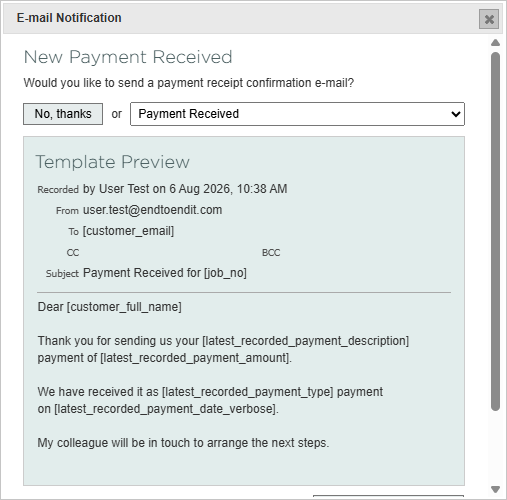
Payment receipt templates can automatically populate with details from the payment that has just been recorded. This helps users send accurate payment confirmations quickly and consistently.
Sending a Payment Receipt Email
To send a payment receipt email:
- Open the relevant order.
- Record the payment as normal.
- When the payment has been recorded, a pop-up will appear.
- Select one of the available email templates to acknowledge the payment.
Select “No, thanks” to close the pop-up without sending an email.
The available templates may contain variables that automatically insert information from the most recently recorded payment.
Payment Receipt Variables
Several variables are available for use in Payment Receipt Email templates.
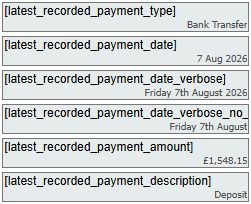
Payment type
[latest_recorded_payment_type]
Displays the payment method used for the most recently recorded payment.
Examples include:
- Credit/debit card
- Bank transfer
- Cash
Payment date
Three variables are available for displaying the payment date in different formats.
| Variable | Example output |
|---|---|
| [latest_recorded_payment_date] | 6 Jul 2026 |
| [latest_recorded_payment_date_verbose] | Monday 6th July 2026 |
| [latest_recorded_payment_date_verbose_no_year] | Monday 6th July |
Payment amount
[latest_recorded_payment_amount]
Displays the value of the most recently recorded payment.
Payment description
[latest_recorded_payment_description]
Displays any information entered into the payment description box when the payment was recorded.
All Payment Receipt Email variables can be found at the bottom of the variable list under the Order tab.
Creating a Payment Receipt Email Template
To create a template that appears in the Payment Receipt Email menu:
- Open any order.
- Go to the Correspondence tab.
- Select Create New Template.
- Create and edit the template in the same way as any other correspondence template.
- Tick the Include in Payment Receipt list option.
- Save the template.

Once Include in Payment Receipt list has been selected, the template will appear as an option when a payment is recorded.
Using Multiple Templates
Multiple templates can be added to the Payment Receipt list.
For example, separate templates could be created for different payment methods, customer types or styles of confirmation. Using templates together with the payment variables can make the payment acknowledgement process almost automatic.