Video Guide: Creating and Managing Remedials
See how to create a secondary record linked to the original defective order and effectively manage remedials.
Key Points: Creating a Remedial
1. Find the defective order
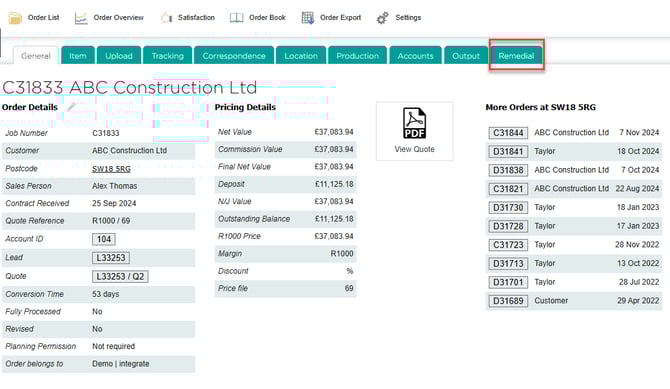
Go to the defective order, click on the remedial tab.
2. Create a new remedial record
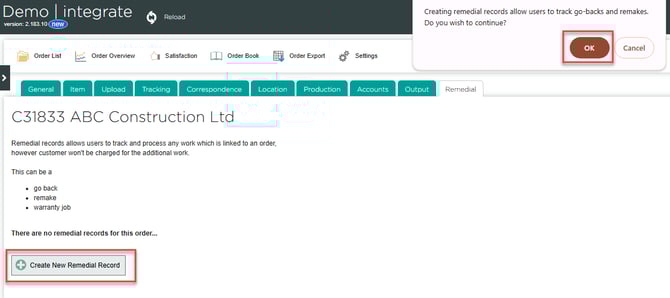
Click create new remedial record, then OK.
3. Record the details of the defect
Record the defect, cause, planned action, and if the balance for the order has been paid. Click save.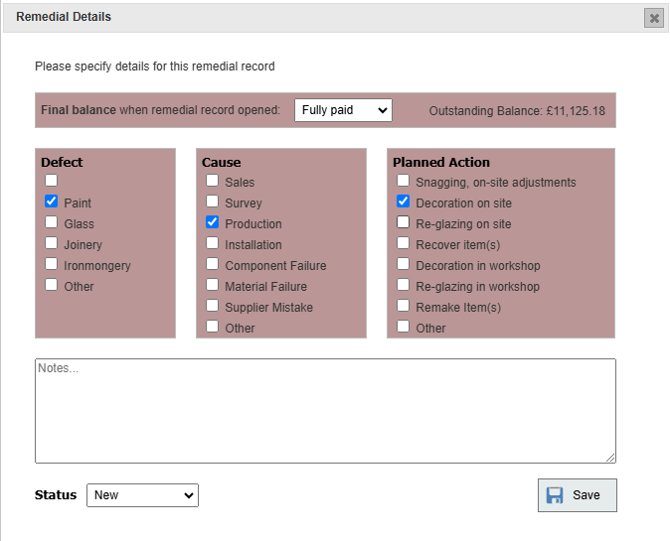
4. Create and modify a secondary record
A record for the remedial will be created. This will have the same order number of the original order followed by a decimal point. To make changes or mark the remedial as completed, click the modify button.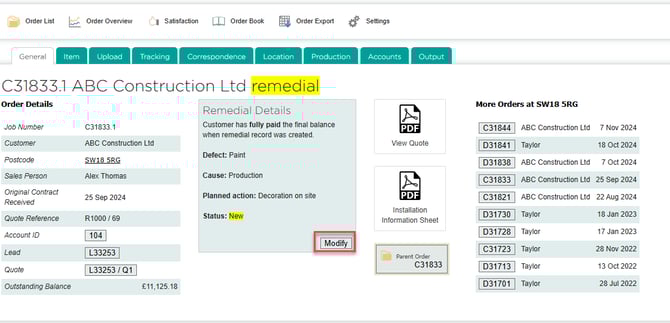
5. Survey items for a remedial
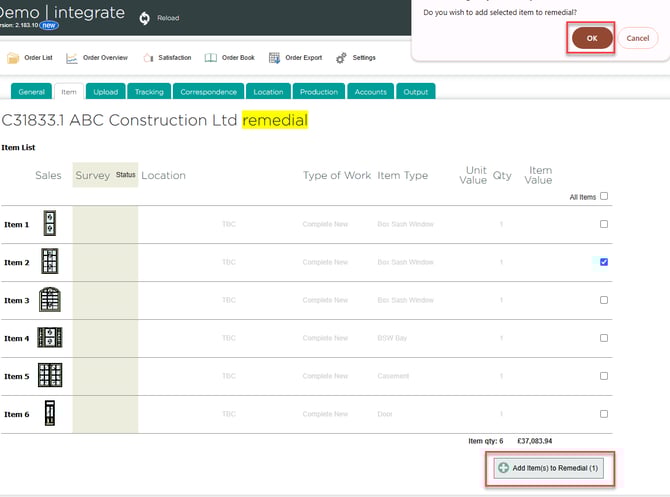
Click the item tab. Tick one or more of the items, click add item(s) to remedial , then OK.
6. Create survey drawings
For each item on the remdial, click create survey drawing.
Note: This will open DrawingBoard allowing repairs to be specified for each remedial item. For further information, refer to the separate guide on repairs.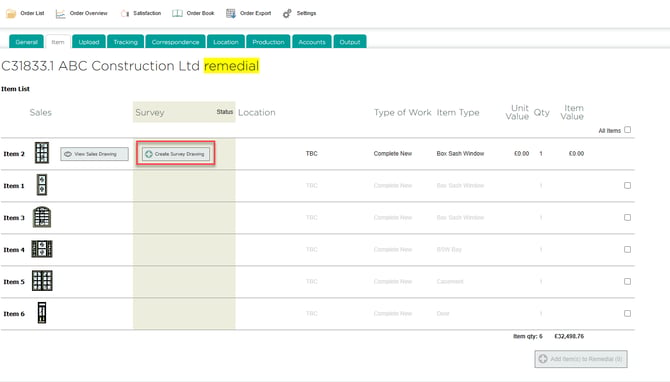
7. Import remedial jobs into the productions schedule
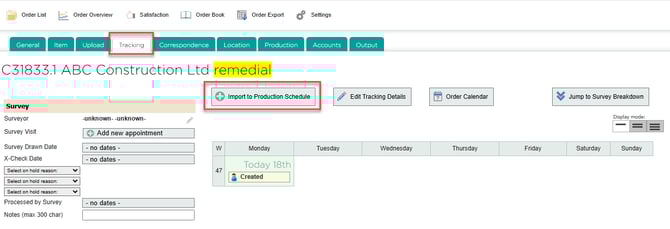
Within the tracking tab, import remedial jobs into the production schedule, just like regular jobs.
8. View list of remedials
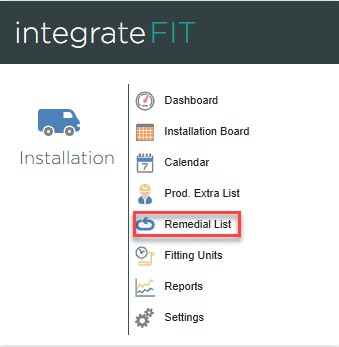
Within integrateFIT, navigate to installation, click the remedial list button.