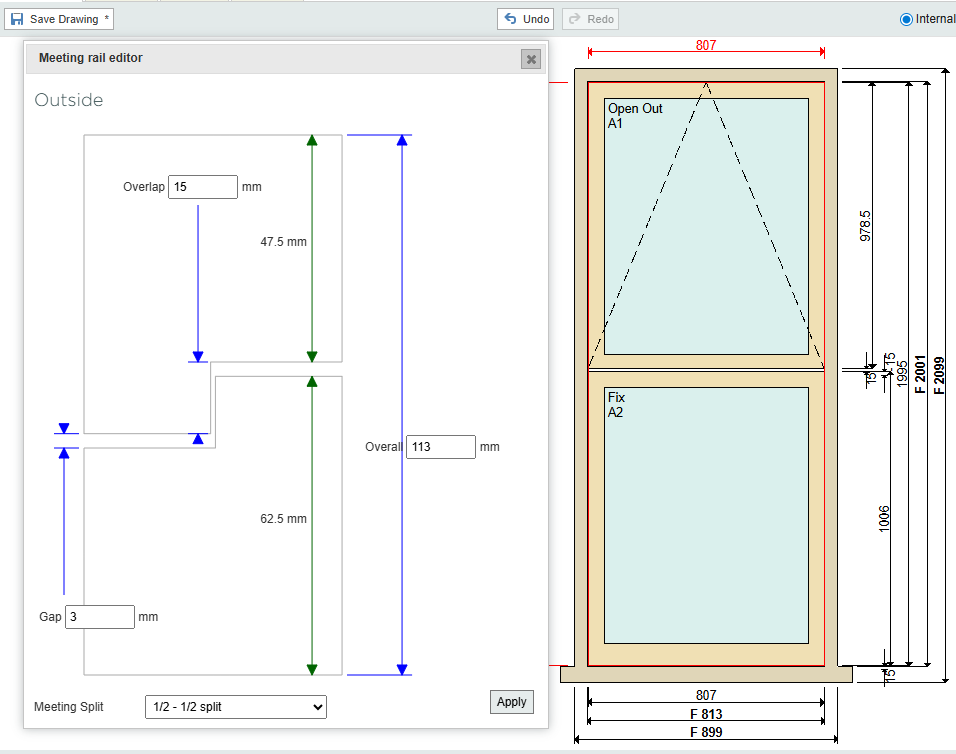
Key Points: Editing the Stable Door Meeting Rail
1. Enable features in the property visibility tab
From the DrawingBoard config page, select Property Visibility.
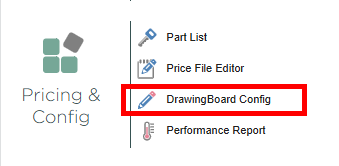
2. Select the stable door meeting rail
From the visibility tab, select part filter, then stableDoorPart. Under property filter, search for meetingStile.
3. Enable the properties.
Remove the both hidden option.
4. Start using the editor
Create a new door drawing.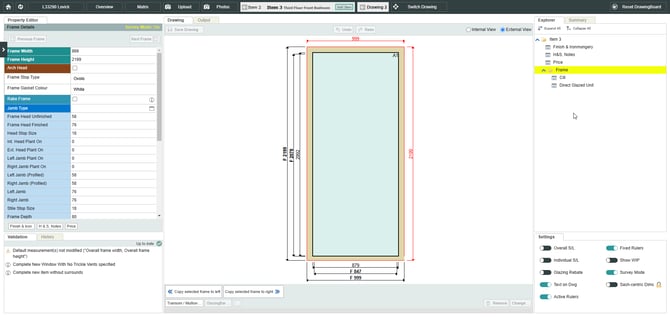
5. Make a stable door
Select the interior of the door, click the change button on the bottom right. Select the stable door option from the product type selector menu.
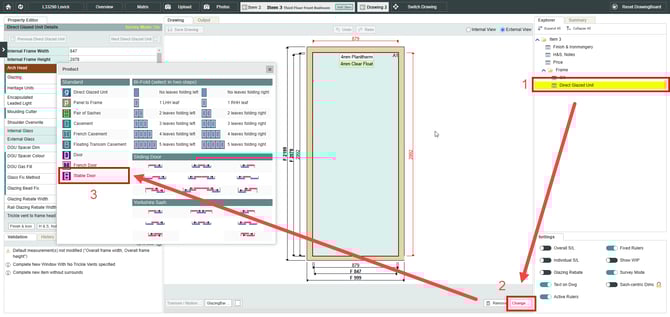
6. Access the meeting rail editor
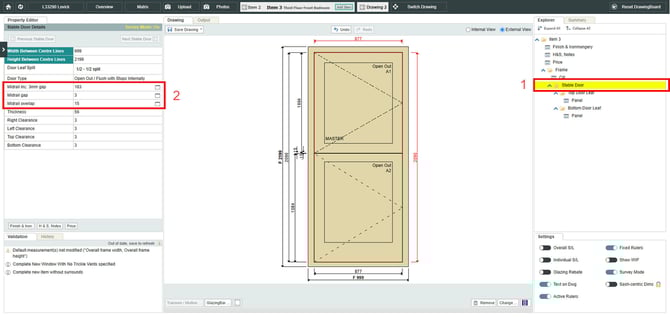
Using explorer on the right-hand side of the screen, select stable door to open the property editor on the left-hand side. Select one of the following properties to access the meeting rail editor:
Midrail Inc. Xmm gap
Midrail gap
Midrail overlap
7. Change meeting rail measurements
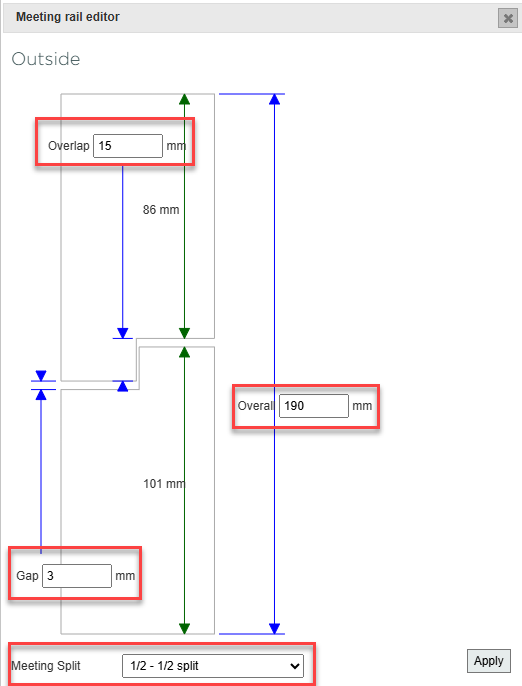
In the property editor, change the overlap, gap and overall size of the meeting rail. Enter the desired values into the property boxes. If you don't want a 1/2 - 1/2 split, you can edit the values on the green arrows individually by selecting a different Meeting Split. Once satisfied with the measurements, click apply in the bottom right of the meeting rail editor.
8. Using the meeting rail editor for floating transom casements
Set overlap, gap and overall size of the meeting rail within floating transom casement windows, using the meeting rail editor.