
- Log in to https://console.cloud.google.com. Make sure the correct project is selected in the top left.

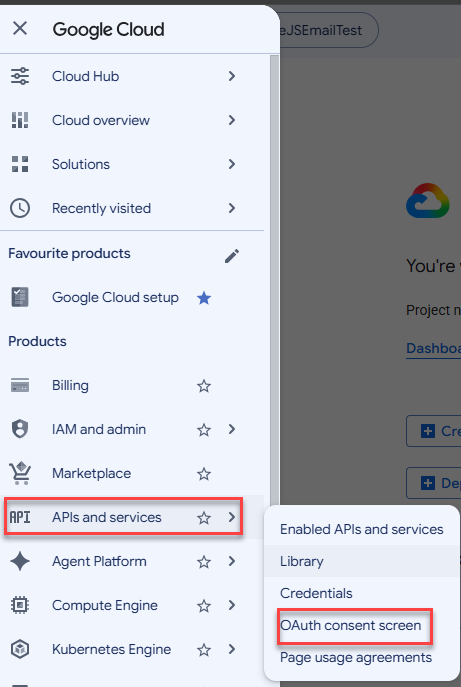
- Expand the navigation menu and select APIs and services > OAuth consent screen.
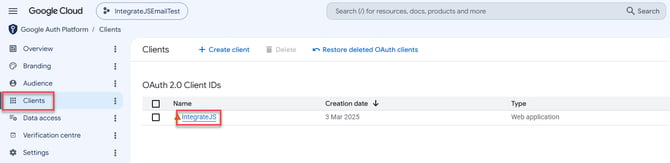
- Select Clients, then the integrate application.
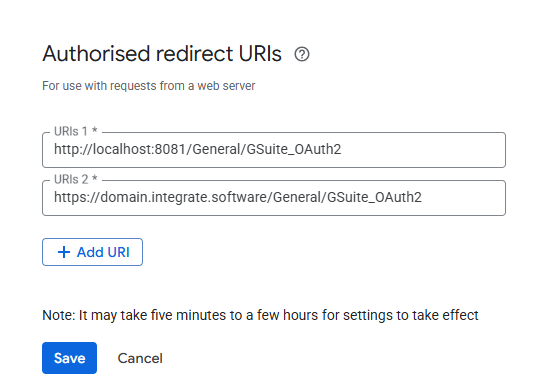
- Under Authorised redirect URIs, click Add URI. Do not delete the existing one(s). New URI should be in the format https://[domain]/General/GSuite_OAuth2. Click Save.
Microsoft
- Log in to https://entra.microsoft.com/.
- On the left, select App Registrations, then choose the integrate application.
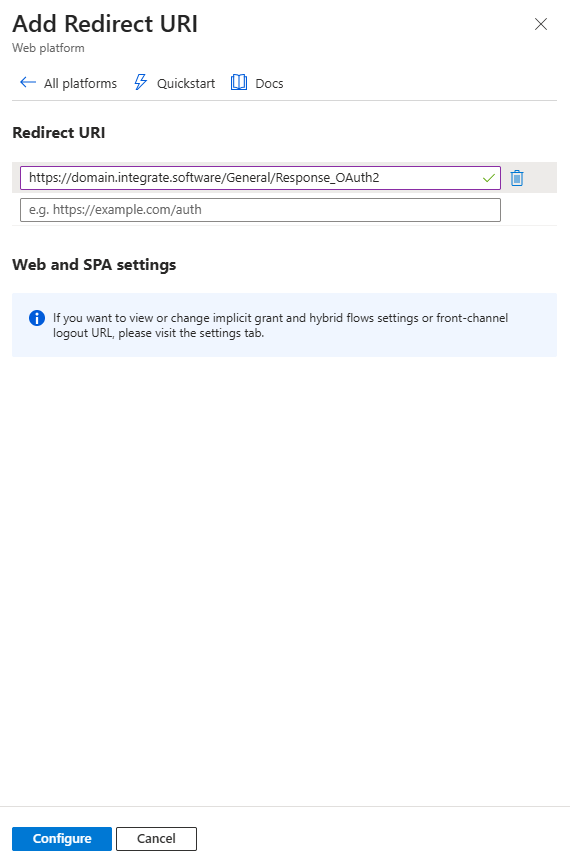
- Click Authentication, then Add Redirect URI.
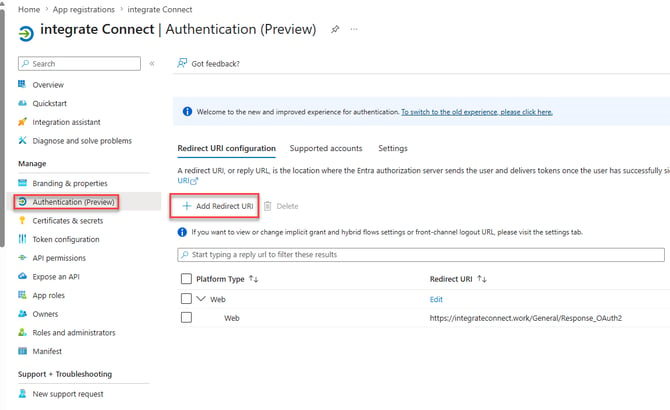
- Select Web Application, then add the new redirect in the format https://[domain]/General/Response_OAuth2. Do not delete the existing one(s). Click Configure.
Xero
- Login to to https://developer.xero.com/app/manage/ and select the integrate application.
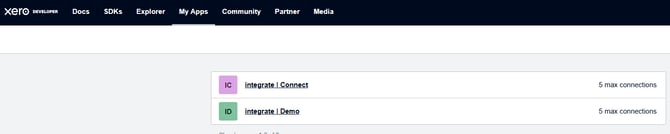
- On the left, click Configuration, then scroll down and click Add another URI.
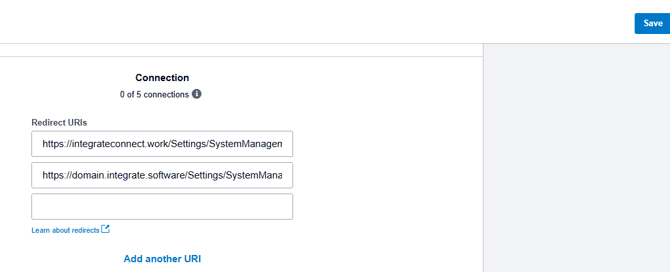
- Enter the new URI in the format https://[domain]/Settings/SystemManagement/AccountingSystem. Do not delete the existing one(s). Click Save in the top right.